ThreatLocker Installation Guide (macOS)
ThreatLocker is a mandatory security tool required on all computers used for work at The GelBottle. It protects company data and systems by preventing unauthorised applications and malicious activity which can steal or encrypt data.
1) Download Threatlocker
Please download ThreatLocker using the link below. This link contains a unique identifier that ties the installation to The GelBottle.
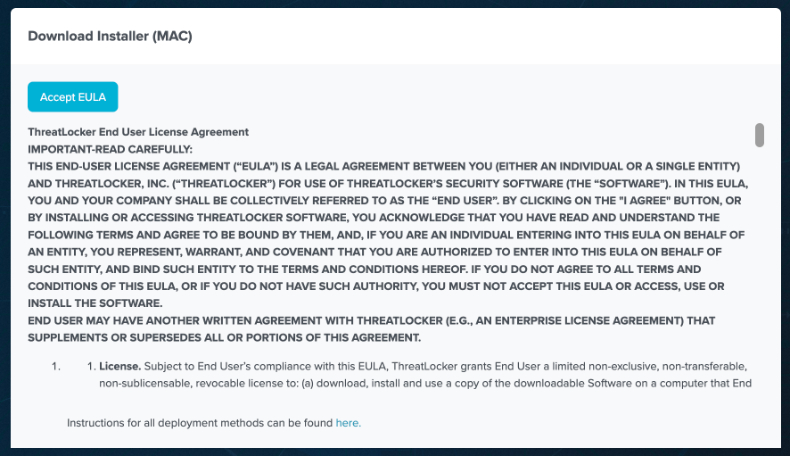
2) Click on ‘Accept EULA’
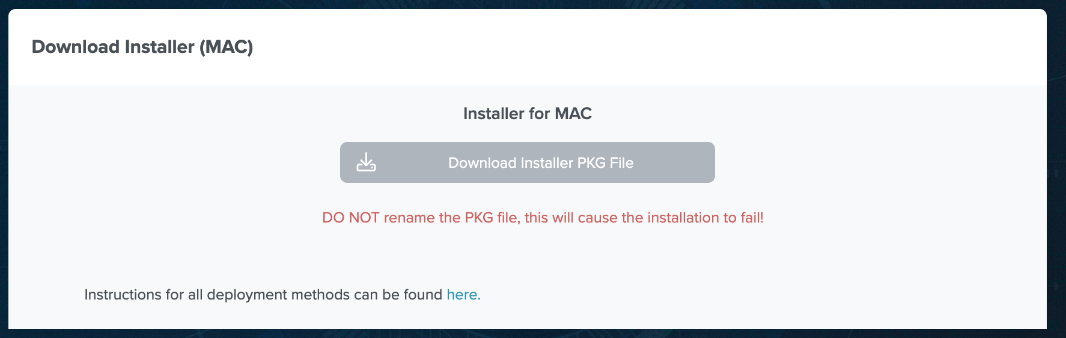
3) Click on ‘Download Installer PKG file’
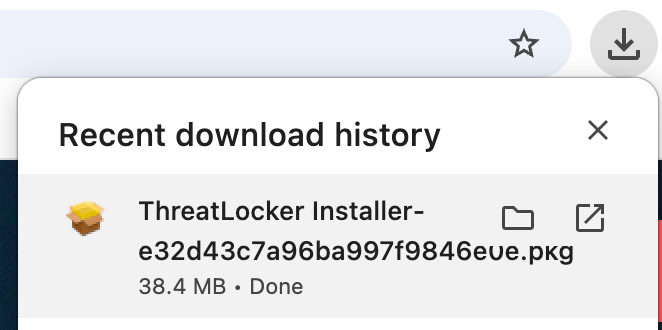
4) From the browser’s download history, run the .pkg file by double clicking. Please make sure you didn’t double-downloaded the .pkg file, in which case the second copy will have a (1) in the name, and will fail to install.
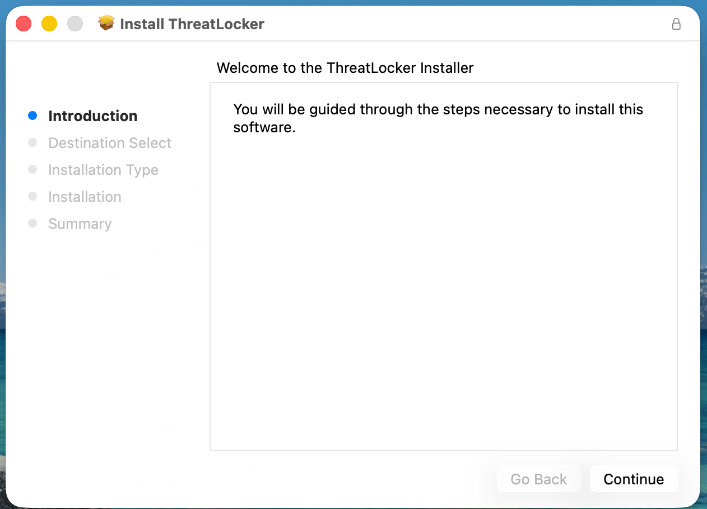
5) Click on ‘Continue’
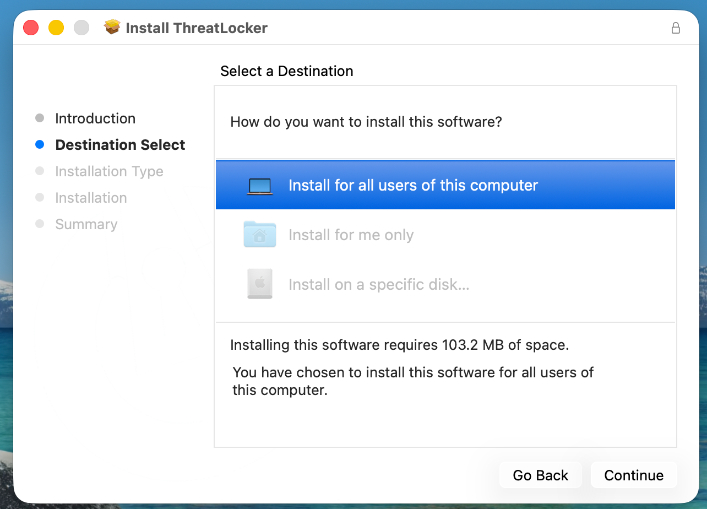
6) Install for All users, click ‘Continue’
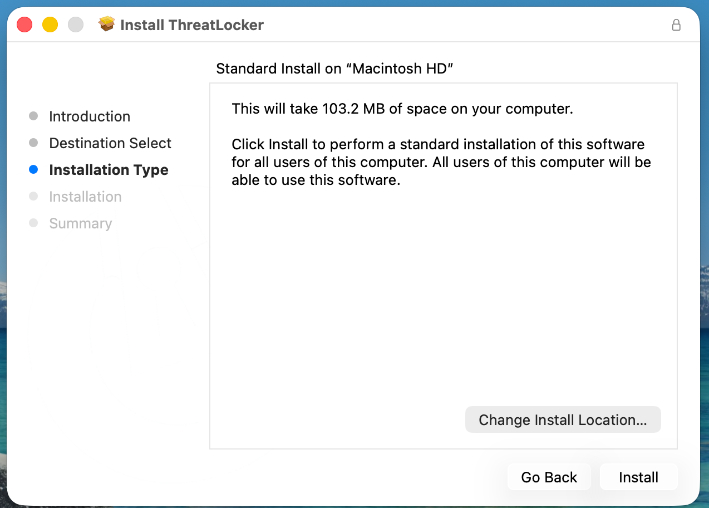
7) Click on ‘Install’
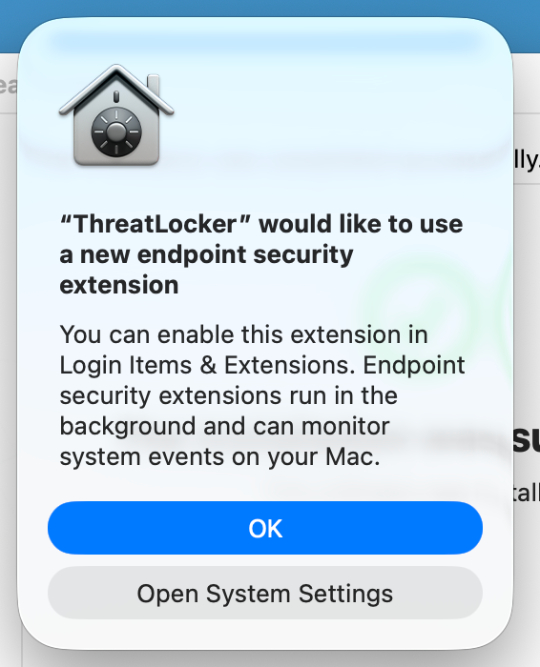
8) When prompted, click on ‘Open System Settings’ to correctly grant full disk access. Do NOT click on the blue ‘OK’ button in this case.
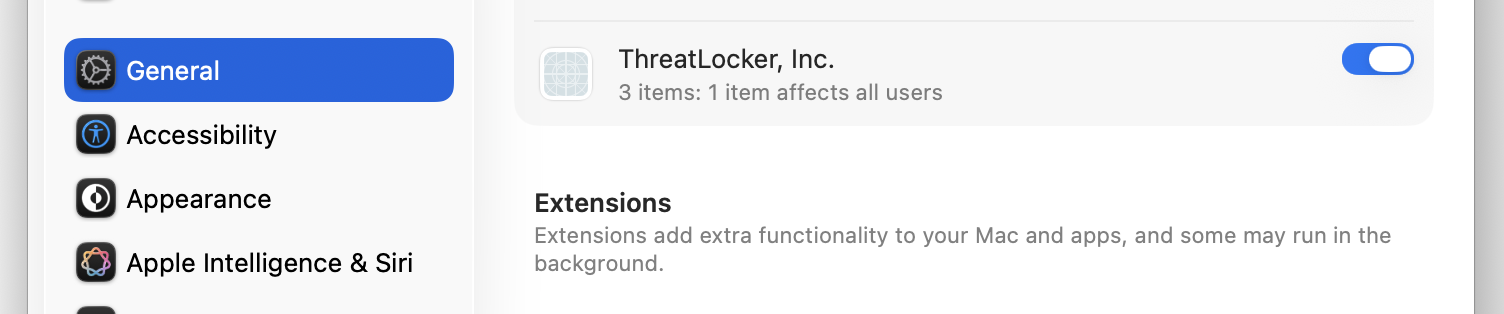
8a) If by chance you have clicked ‘OK’ on the previous window, start your Settings App, and under General, find ‘Login Items’, and…
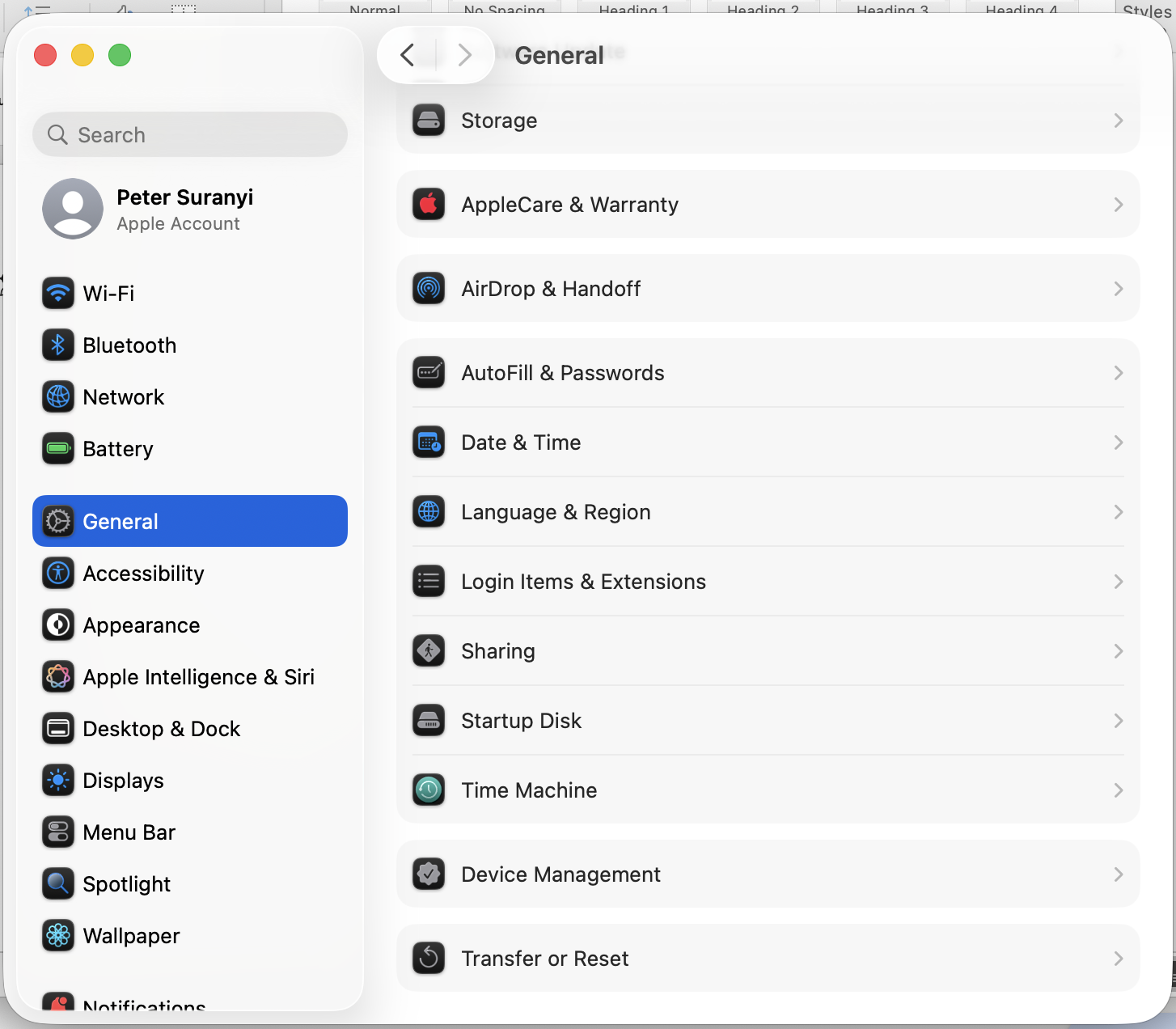
8b) …and turn on ‘Threatlocker Inc.’ with the little button next to it on the right. This will make sure Threatlocker will run automatically on startup.
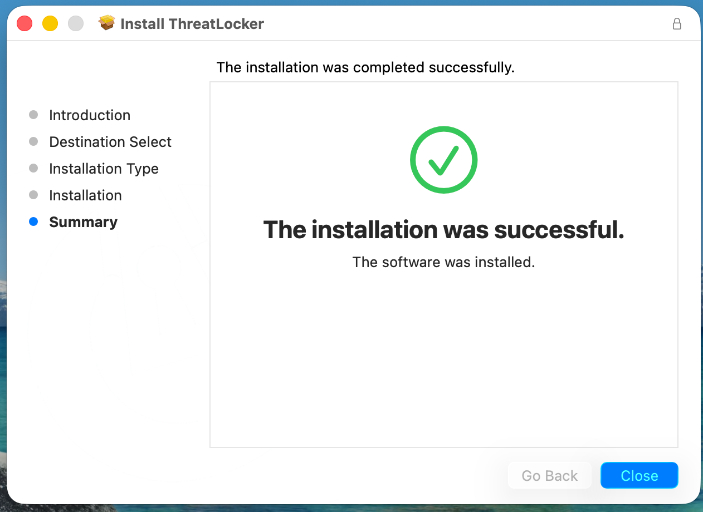
9) You can close in the installer by clicking ‘Close’
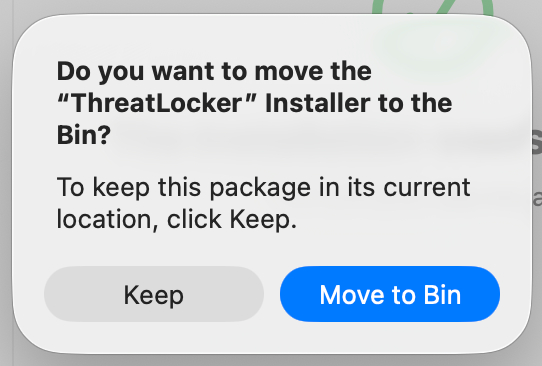
10) Click on the ‘Move to Bin’ button
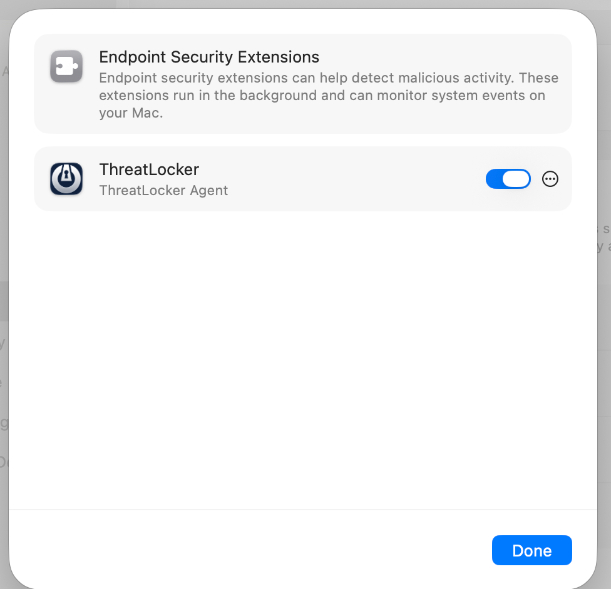
11) On the Endpoint Security Extensions page, click on the radio button next to Threatlocker, so it activates (like on the screenshot).
After it’s active, click ‘Done’.
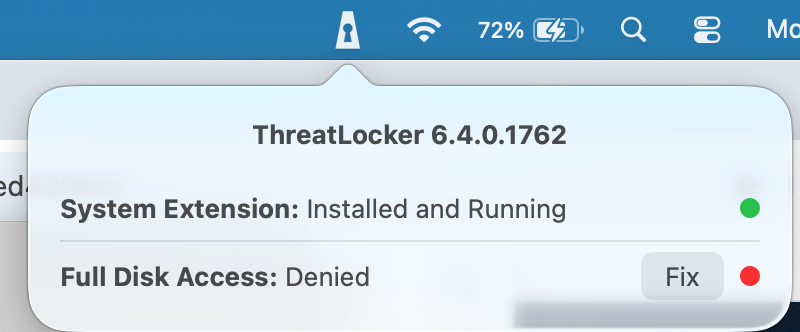
12) A new icon will appear on top bar. If you get the ‘Full Disk Access: Denied’ message, click on ‘Fix’.
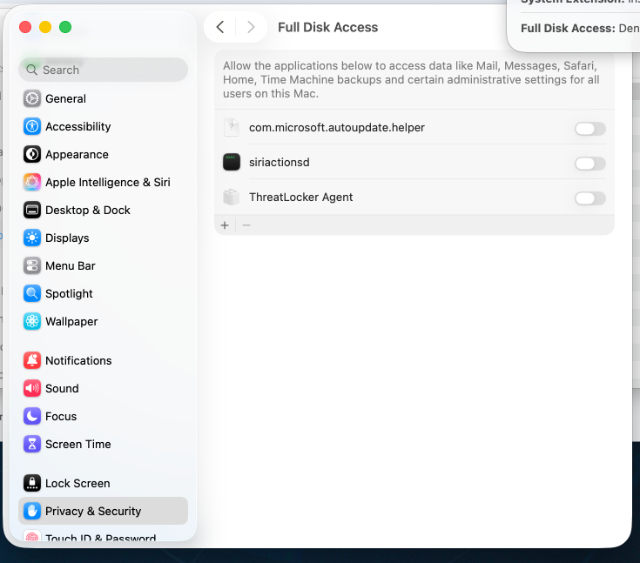
13) This will display the Full Disk Access Page. Click on the button next to ‘Threatlocker Agent’ to activate it. You will be prompted to enter you password to enable this.
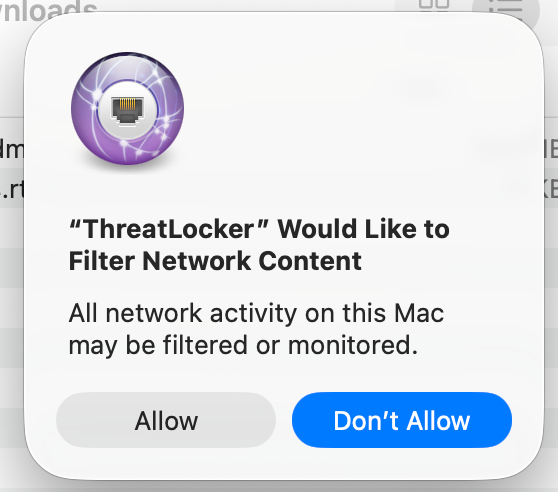
14) If you see this pop-up, click on ‘Allow’
Installation Complete
Once installed, ThreatLocker will run silently in the background, and you will see it in the menu bar. Threatlocker is important tool to keep company data safe.
If you have any questions, please reach out to your friendly IT team at: itqueries@thegelbottle.com
Thank you for keeping us cyber-safe!
Was this article helpful?
That’s Great!
Thank you for your feedback
Sorry! We couldn't be helpful
Thank you for your feedback
Feedback sent
We appreciate your effort and will try to fix the article