Intune Company Portal Installation Guide (macOS)
Intune Company Portal is a mandatory management tool required on all macOS devices used for work at The GelBottle. It allows IT to protect company data, apply security policies, and ensure devices meet compliance requirements.
01) Download Intune Company Portal
Download Intune Company Portal using the official Microsoft link below:
https://go.microsoft.com/fwlink/?linkid=853070
In case the link doesn’t work, you can also find the download by searching for
‘Add the macOS Company Portal App’ finding the Official Microsoft website, and download it from there.
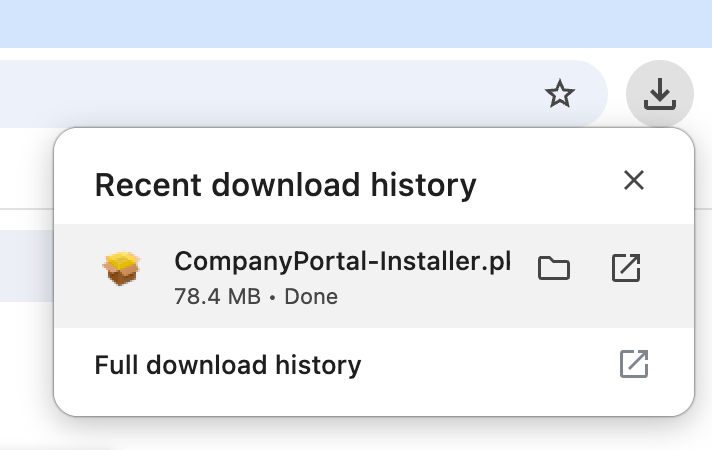
02) From the browser’s download history, run the .pkg file by double clicking.
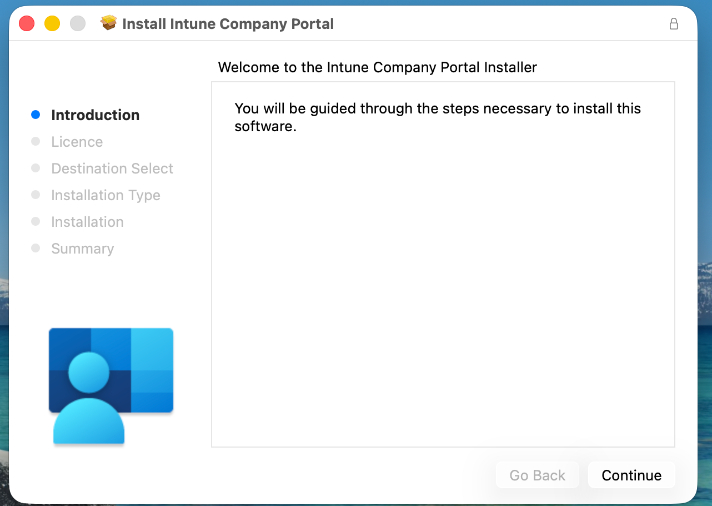
03) Click on ‘Continue’
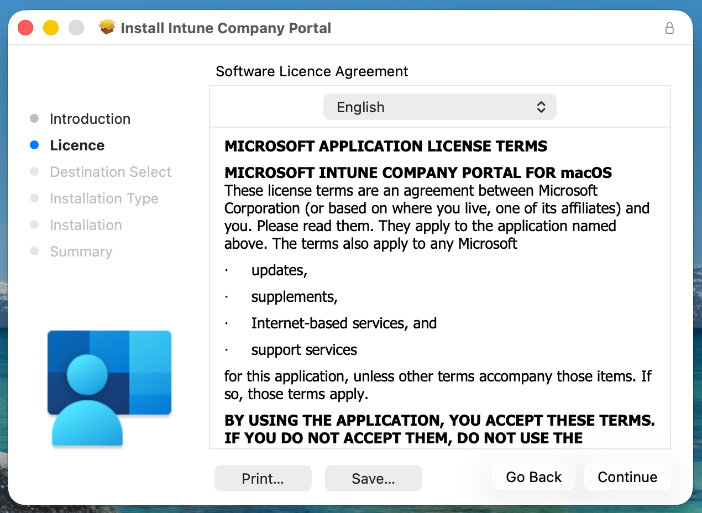
04) Click on ‘Continue’
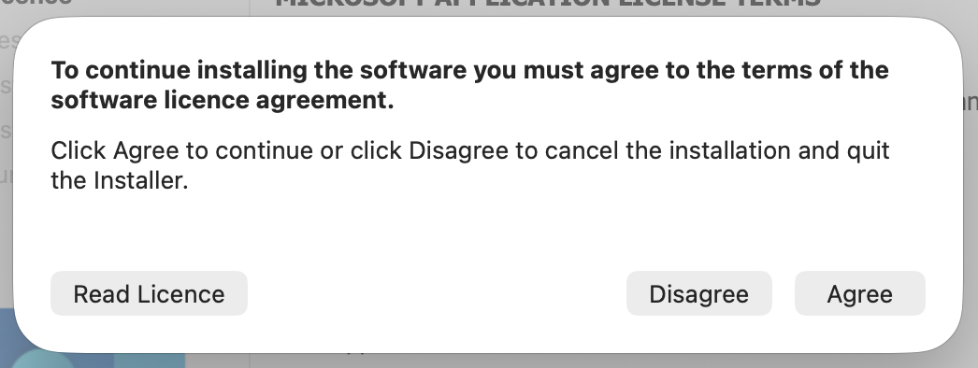
05) Click on ‘Agree’
06) Click on ‘Install’
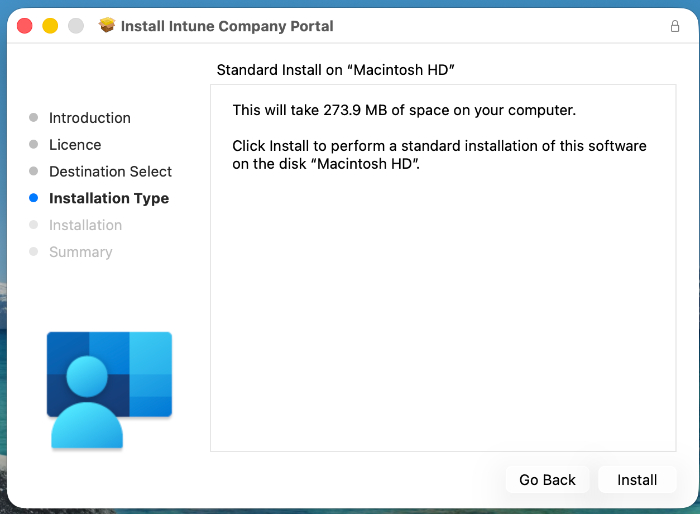
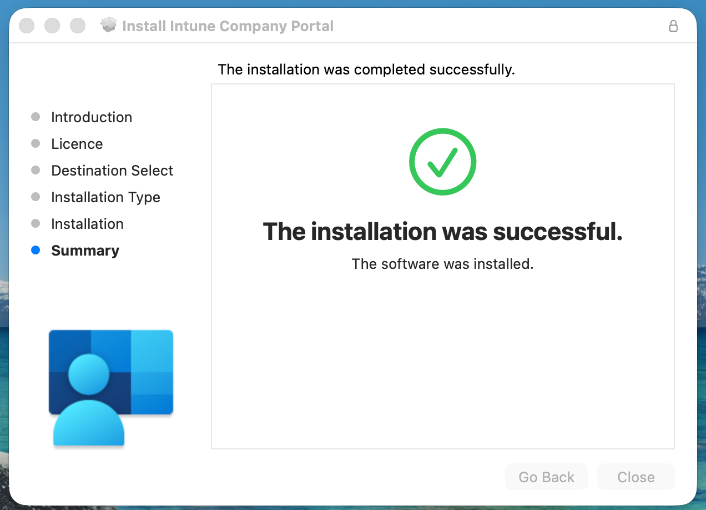
07) Once installation is successful, you can click on the ‘Close’ button
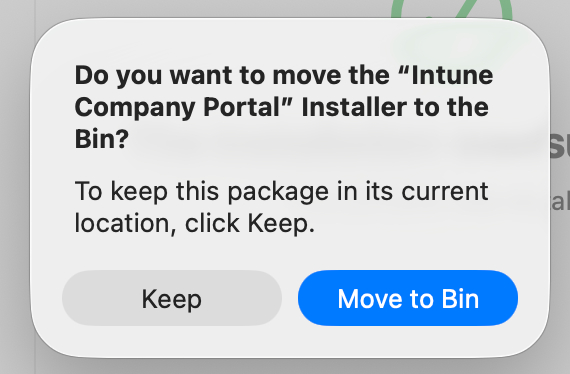
08) If faced with this prompt, you can click on ‘Move to Bin’
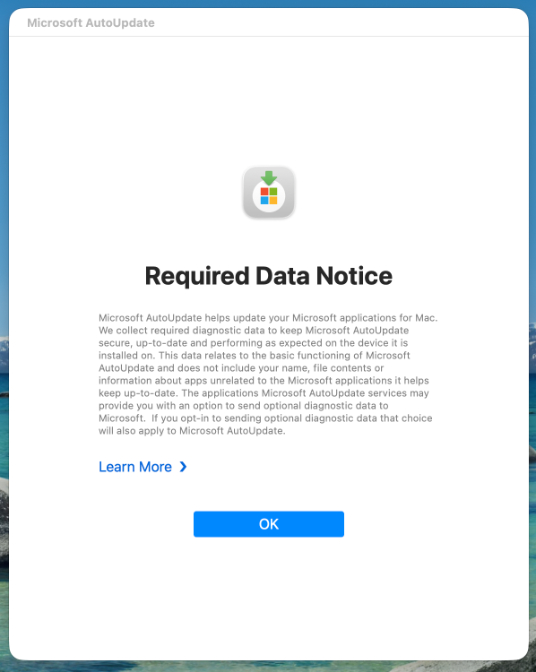
09) Click on ‘OK’
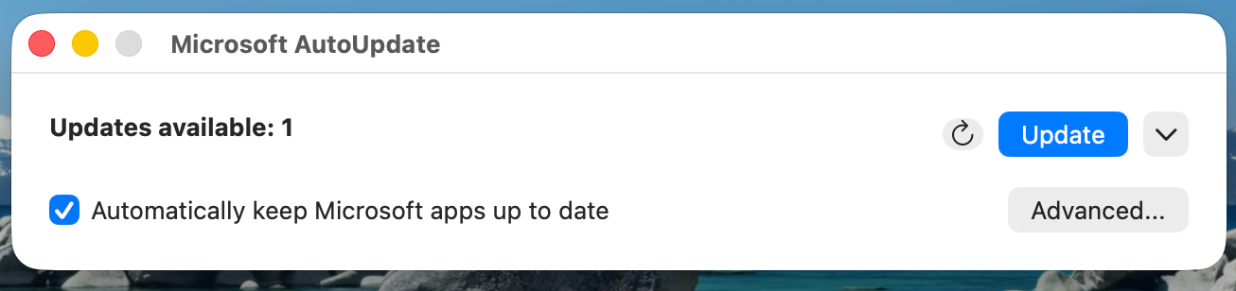
10) If the Microsoft Autoupdate window were to pop up, just click on ‘Update’
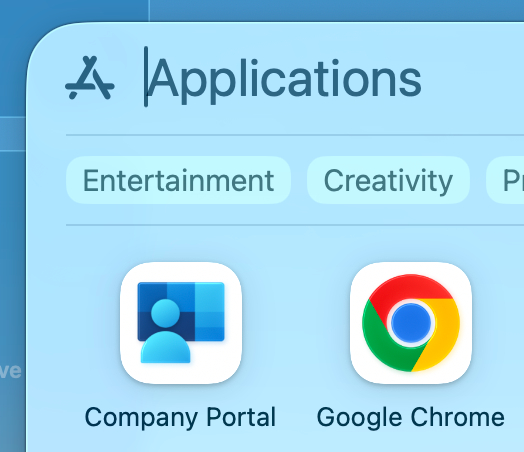
11) Launch the freshly installed Company Portal from your Applications
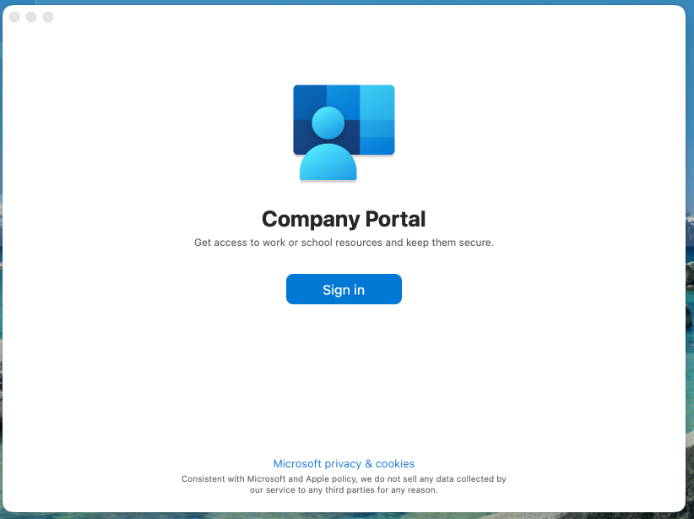
12) The Company Portal window will pop up. Click on ‘Sign in’
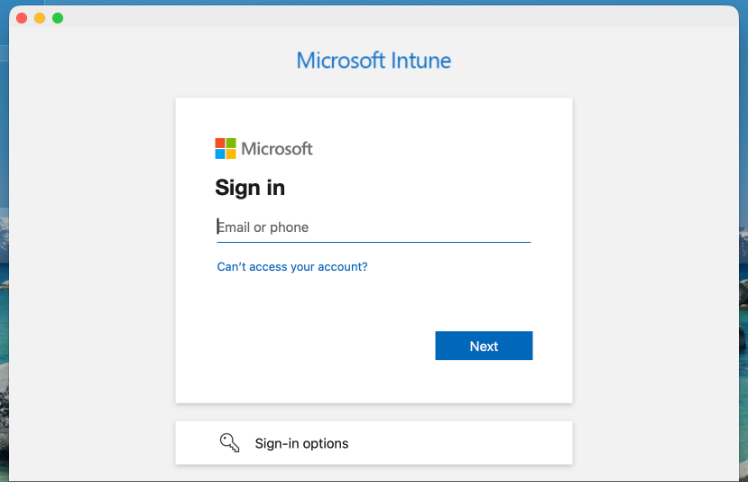
13) You will be presented with the standard Microsoft prompt for signing in. You will need your mobile authenticator in hand for this to work.
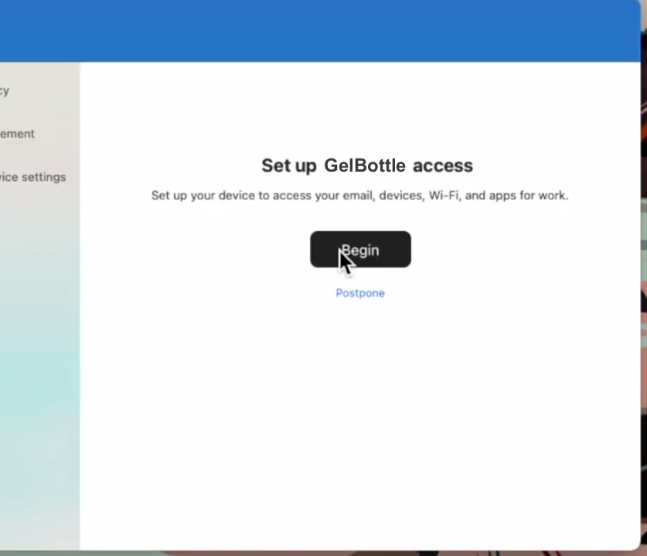
14) Once signed in, the authenticator will ask you to begin the onboarding process. Click on ‘Begin’
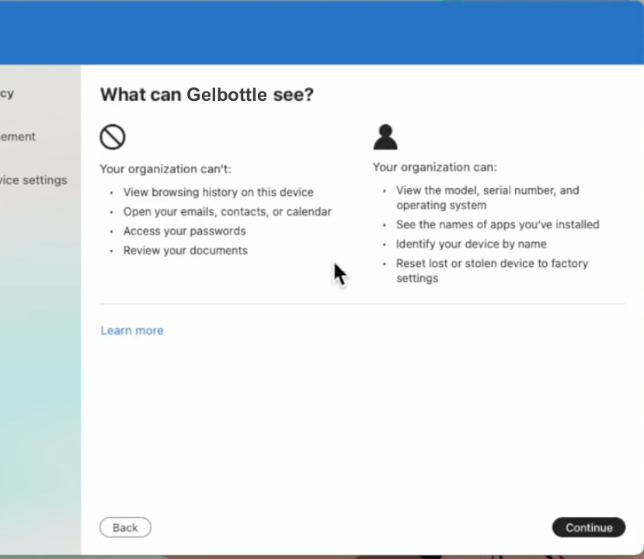
15) This is an information screen. Once acknowledged, click ‘Continue’
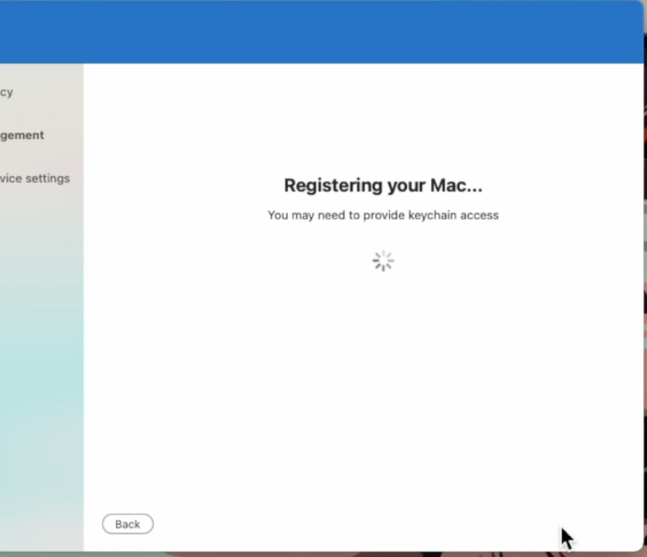
16) Company Portal will start the onboarding process, please wait
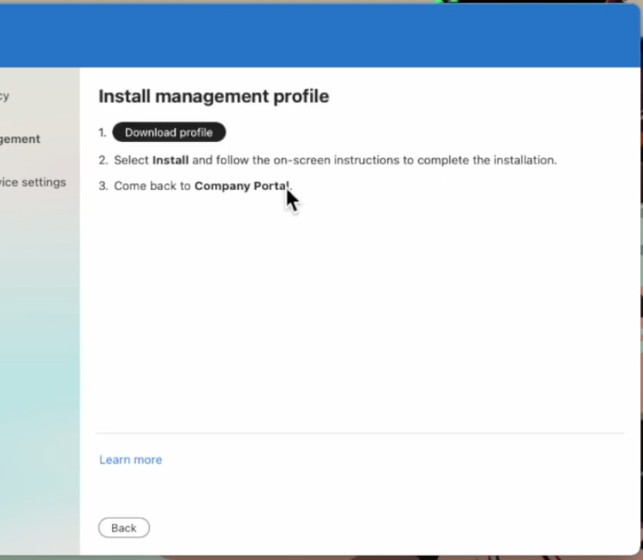
17) Click on the ‘Download Profile’ button
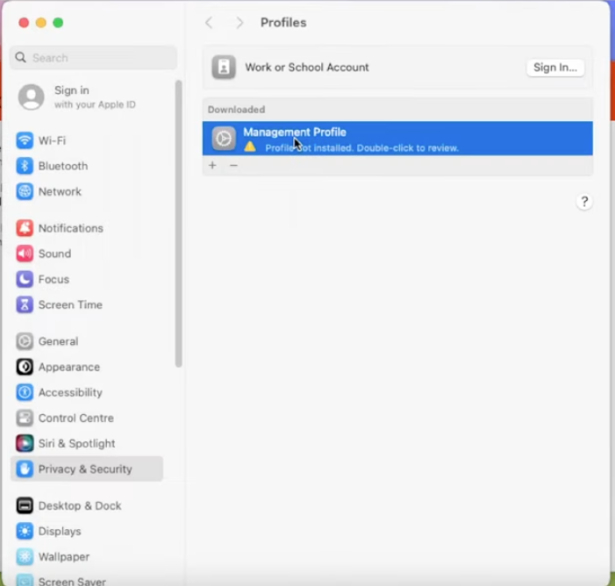
18) The Settings window will pop up.
Double-click on the ‘Management profile’ line.
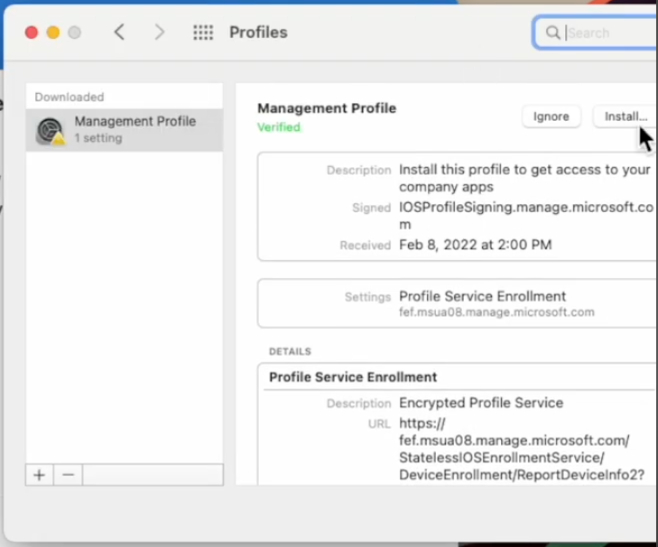
19a) Click on ‘Install’. Depending on your computer, the window will either look like this (‘Install’ button in top right corner)…
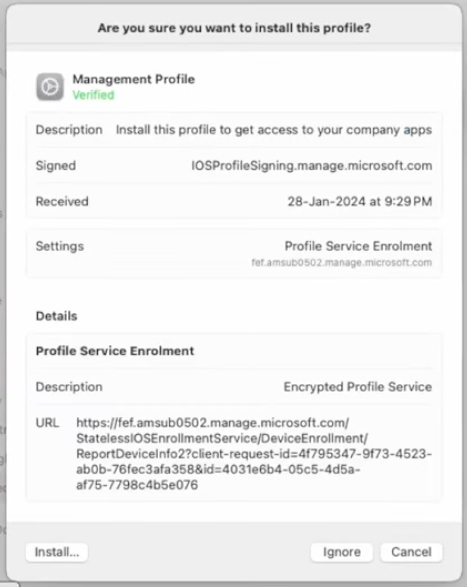
19b)… or like this (‘Install’ button in the bottom left corner)
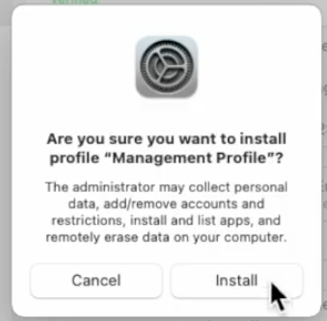
20) Click on the ‘Install’ button
21) Company Portal will now check your device and install additional software if needed. This may take a few minutes.
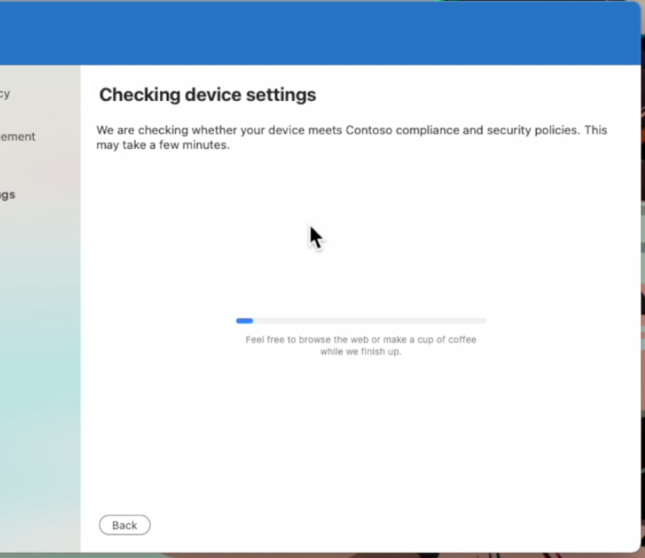
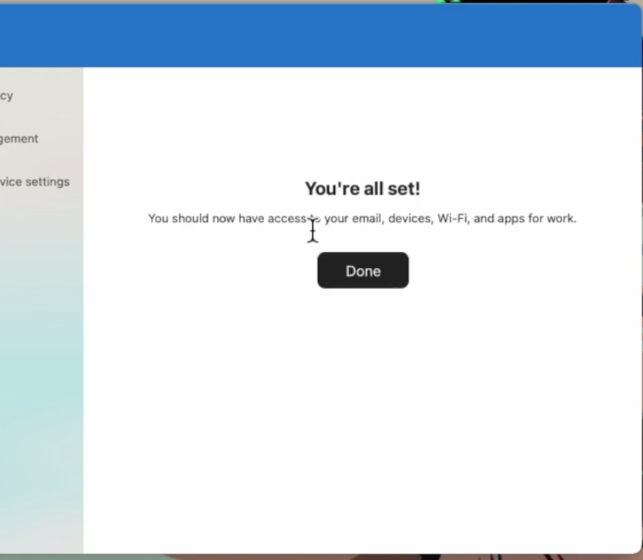
22) Installation is finished. Click on the ‘Done’ button
23) If not already open, run Company Portal from your Applications. The screen should look similar to this, with your name and computer listed, and the Status showing ‘In Compliance’.
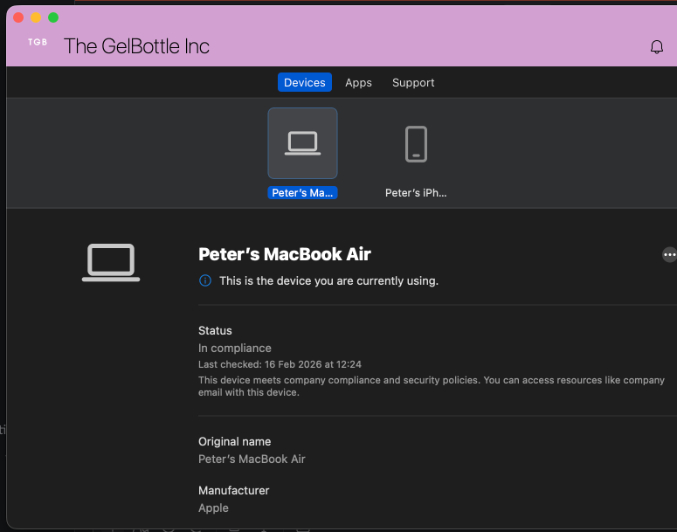
Installation complete
Once installed, Company Portal will run silently in the background. Company Portal is important to manage company resources and to make sure that your device is regularly updated, and same from cyber attacks.
If you have any questions, please reach out to your friendly IT team at: itqueries@thegelbottle.com
Thank you for keeping us cyber-safe!
Was this article helpful?
That’s Great!
Thank you for your feedback
Sorry! We couldn't be helpful
Thank you for your feedback
Feedback sent
We appreciate your effort and will try to fix the article